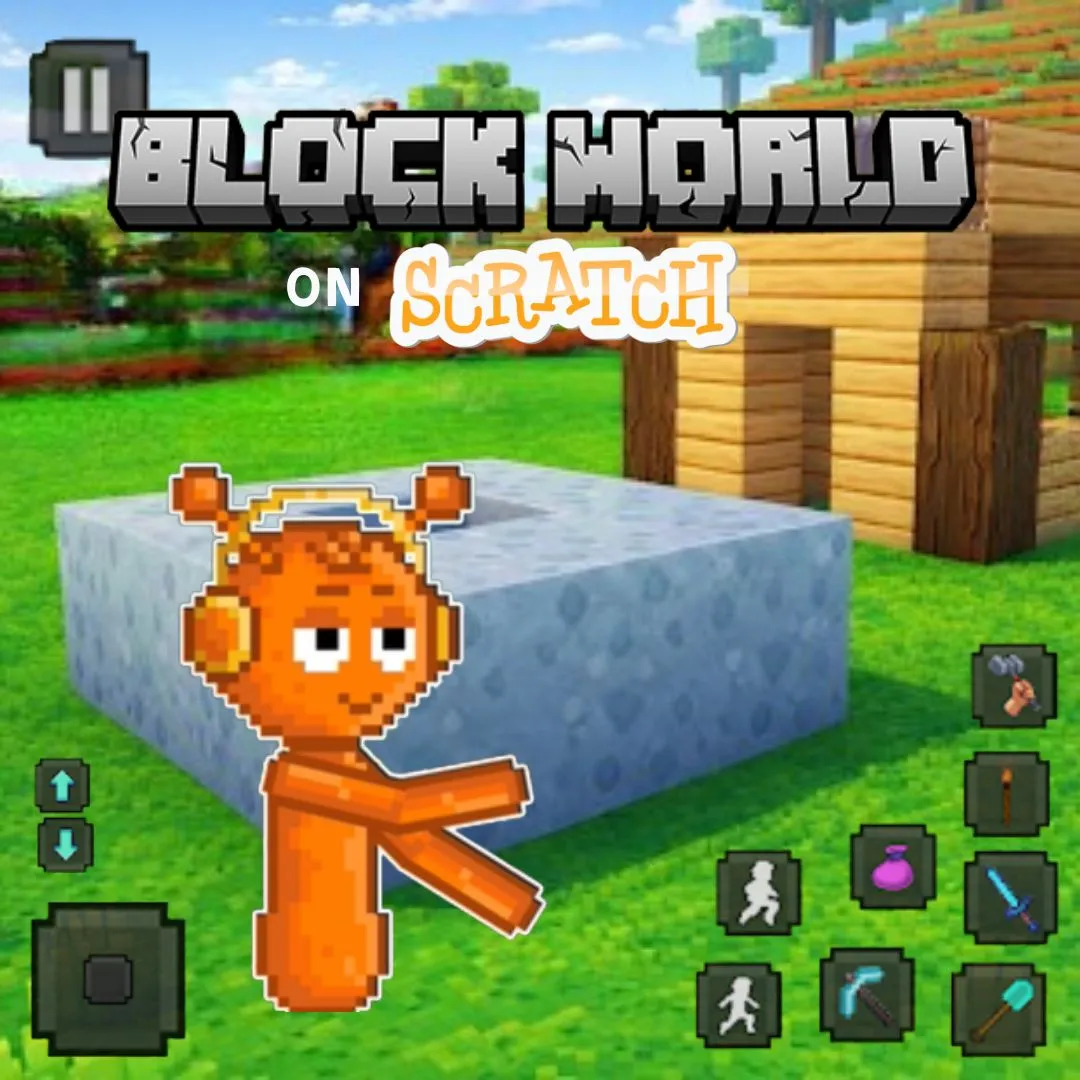

Do you love stacking blocks, painting them bright colors, and building your own little world from scratch? Then you are going to love this project, because today we are going to make a Block Building Sandbox right inside Scratch. You will place blocks on a grid, break them away when you want a fresh start, and color each one however you like. This kind of open sandbox is one of those fun coding projects that turns a blank stage into an endless playground for creativity, and every single block is something you built yourself with code.
Scratch programming makes this creative build beginner friendly. The colorful drag and drop blocks let young coders see their logic clearly, so coding for kids stays exciting instead of scary. By the end, you will understand grids, lists, and clones, and you will have a real sandbox to build in whenever you like. Grab your imagination and let us start placing blocks.
Why a Block Building Sandbox Is a Great Coding Project
Kids love games with no rules and endless creativity, and a sandbox delivers exactly that. There is no way to lose, no timer ticking down, just blocks and imagination. That freedom gives young coders a wonderful space to experiment, because every choice they make is simply their own idea coming to life.
This project is also full of real computer science. Placing blocks needs a grid system. Breaking blocks needs clones and lists. Coloring blocks needs variables and effects. You learn all of it while making something you can play in forever. That is why this kind of sandbox build ranks among the best beginner coding games for creative young minds. If your child enjoyed our Adopt Me pet trading build or the Sprunki character designer, this is a wonderful next step.
The Story: The Empty World of Gridland
Far away on a quiet digital plain sits Gridland, a world made of nothing but empty squares stretching in every direction. Nobody lives there yet, because nobody has built anything at all. The old mapmakers say that Gridland only becomes a real place once a builder arrives with the courage to place the very first block.
That builder is you. With a click, you drop your first block onto the grid. With another click, you paint it a brilliant color. Block by block, Gridland transforms from an empty plain into a colorful town of your own design. There are no wrong moves here, only new ideas. Ready to bring Gridland to life? Let us start building.
Block Building Sandbox: Set Up Your Building Grid
Every good sandbox needs a grid to build on. We will use simple math to snap blocks into neat rows and columns, so everything lines up perfectly no matter where the player clicks. This grid system is the foundation the whole game stands on.
| Setting | Purpose | Example Value |
|---|---|---|
| gridSize | Size of each block square | 40 |
| blocksPlaced | Counts total blocks built | 0 |
| currentColor | Stores the selected paint color | green |
Here is the script that snaps any click to the nearest grid square. Rounding the mouse position keeps every block perfectly aligned.
With this snapping trick in place, your Block Building Sandbox will always look tidy and organized, even when players build wild and towering creations.
Block Building Sandbox: Place and Break Blocks
Now for the fun part, actually placing and removing blocks. We use clones to stamp a new block wherever the player clicks, and a right click or key press to break one away. This place and break pattern is the heartbeat of any good sandbox.
Breaking a block is just as simple. When the player clicks an existing block while holding a key, that clone quietly disappears.
Now players can build towers, knock them down, and rebuild something new in seconds. That instant feedback is exactly what makes this kind of sandbox so satisfying to play.
Block Building Sandbox: Add Colorful Blocks
A sandbox without color feels a little plain. We let players pick a color before placing a block, then apply that color using a simple effect. This turns every creation into a personal work of art.
| Key | Color Applied | Effect Value |
|---|---|---|
| 1 | Green | 0 |
| 2 | Blue | 60 |
| 3 | Red | 120 |
| 4 | Yellow | 180 |
Whatever color is selected gets used the next time a block is placed. With four or more colors to choose from, every Block Building Sandbox creation can look completely unique.
Block Building Sandbox: Coding Skills Kids Learn
This single project quietly teaches a huge amount. Here is what your young coder practices while having a blast:
| Skill | Where It Shows Up |
|---|---|
| Grids and math | Snapping blocks into place |
| Clones | Placing and removing blocks |
| Variables | Tracking color and block count |
| Events | Clicks and key presses |
| Effects | Changing block colors |
These are the same building blocks used in real games and apps. Master them young, and harder languages feel far friendlier later. When a learner is ready for text based code, our Algorithm Avengers program for teens is the perfect next leap.
Fun Ways to Level Up Your Sandbox
Once the basics work, let creativity take over. Encourage your child to remix the sandbox and make it truly their own:
Add a save button that remembers a favorite build. Create special block types like glowing or bouncy blocks. Add a day and night backdrop that changes the mood. Give players a bucket tool that fills a whole area with color. Build a screenshot mode to capture finished creations. Every tweak sharpens their Scratch programming skills and keeps the fun going. For more remix ideas, kids love our Piggy escape game and the Pokemon-style battler builds.
Start Your Coding Adventure
Ready to Code Games Like a Pro?
Now that you can build your own block sandbox in Scratch, why stop at one project? At Junior Coderz, kids build games, apps, and even AI tools with friendly live teachers guiding every step. We turn screen time into skill time, one exciting project at a time.
Book a coding class, join a live Scratch workshop, or dive into our hands-on Scratch coding for kids program. Curious about smart tech too? Explore our AI Hybrid Course where coding meets artificial intelligence.
See what our young coders create every day on Instagram and Facebook. Then grab a free spot below and let your child build their very first masterpiece.
Book Your Free Trial ClassConclusion
You just turned a blank grid into your very own Scratch creation. From setting up the grid to placing and breaking blocks to painting them in bright colors, every part taught a real coding skill. Building a Block Building Sandbox yourself proves that the smartest way to understand programming is to make something you truly enjoy creating.
So keep building and keep dreaming. Remix your sandbox, share it with friends, and plan your next colorful creation. Coding for kids is not about getting everything perfect on the first try. It is about curiosity, creativity, and the joy of watching your ideas come to life. Whenever you feel stuck, our friendly team at Junior Coderz is ready to guide you. Connect with us on LinkedIn and start your coding journey today.
FAQs
What is a Block Building Sandbox in Scratch?
It is a creative project where players place, break, and color blocks on a grid using Scratch code. There are no levels or timers, just an open space to build whatever you imagine, which makes it a relaxing and beginner friendly coding project.
What age group can build this sandbox game?
Most kids aged eight and up can follow along with a little support. Younger coders may need help with clones, while older kids can build it solo. It works wonderfully as one of the more relaxing beginner coding games for families.
Do I need to download anything to start?
No downloads are needed. Scratch runs free in any web browser at the official Scratch website. Just create a free account, open a new project, and start dragging blocks. That easy access is what makes Scratch programming perfect for coding for kids.
How long does this project take to finish?
A focused young coder can build a basic working version in two or three sessions. Adding more colors, block types, and save features takes a little longer. Breaking it into one feature at a time keeps the project fun and easy to manage.
What should my child learn after this project?
Once this feels easy, try bigger Scratch builds or step into text based coding like Python. Junior Coderz offers live classes that guide kids from blocks to real code, so every learner keeps growing at a pace that feels exciting, not stressful.