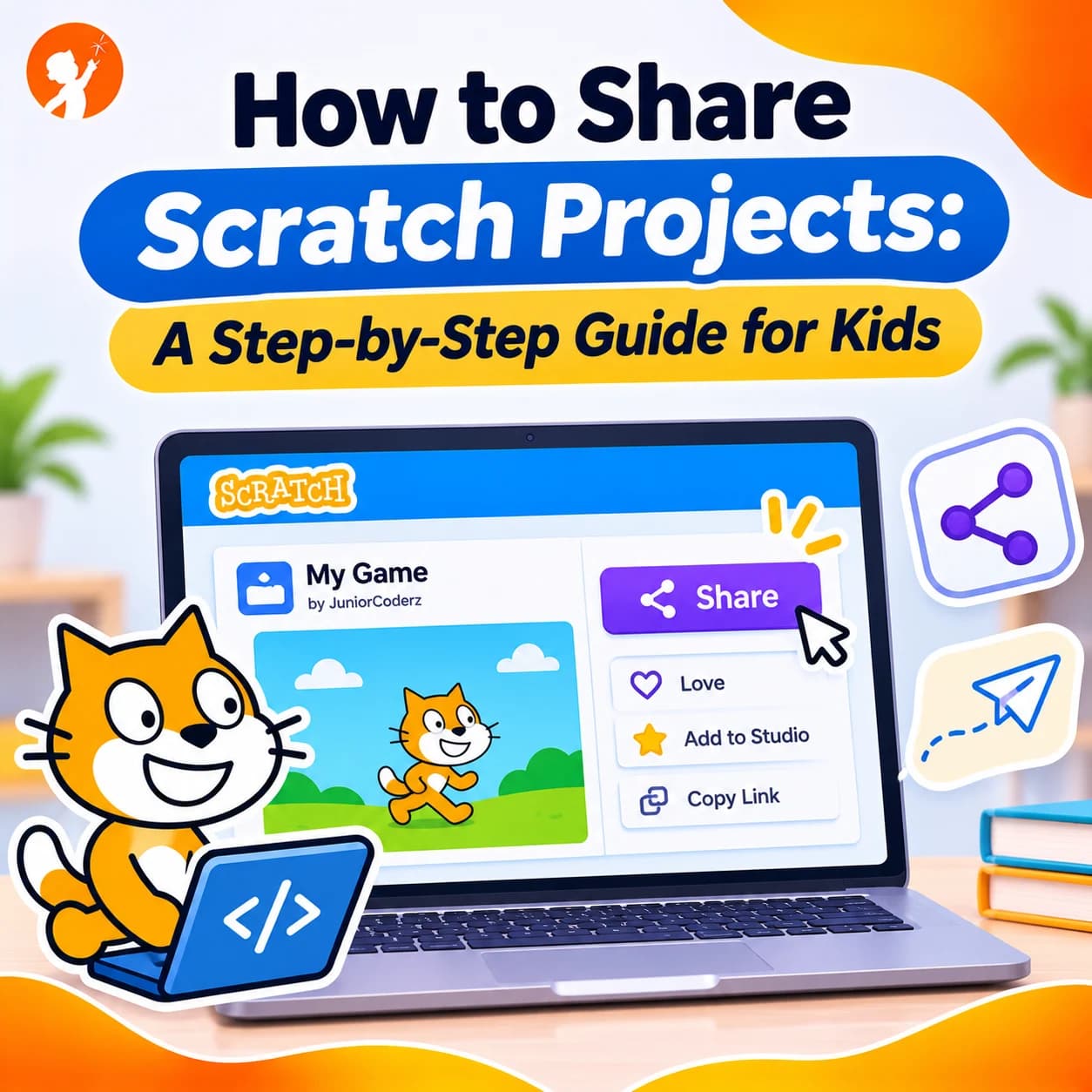
You have built an amazing game in Scratch. Now it is time for the best part: letting other people play it. This guide explains how to share Scratch projects step by step, so your game, animation or story can be seen by friends, family and the whole Scratch community.
You will also learn how to make your project page look great, how to send someone a link, how to work on projects with friends, and how to stay safe while sharing.
What Does Sharing on Scratch Mean?
When you make a project on Scratch, it starts as private: only you can see it. Sharing makes it public, so it gets its own project page that anyone can visit, play, like, favourite and comment on. Other Scratchers can also "remix" it, which means making their own copy to change and improve, with credit going back to you. Sharing is how millions of young coders show their work and learn from each other.
| Not shared | Shared | |
|---|---|---|
| Who can see it | Only you | Anyone with the link, and the Scratch community |
| Comments and likes | No | Yes |
| Others can remix it | No | Yes, with credit to you |
| Can be added to studios | No | Yes |
How to Share Scratch Projects, Step by Step
This is how to post stuff on Scratch for the first time.
Step 1: Create a Scratch Account
You need a free account to save and share. Go to the Scratch website and click "Join Scratch". Choose a username that does not include your real name, and ask a parent to help. Scratch will send an email to confirm the account, and you need to confirm it before you can share projects. Students using a class account from a teacher can share too; learn more about Scratch accounts for students and teachers.
Step 2: Finish and Save Your Project
Open your project in the Scratch editor and test it one last time. Give it a clear, exciting title in the box at the top, such as "Space Snake: Eat the Stars" instead of "Untitled-3". Then click File and Save now.
Step 3: Click the Share Button
Click the orange Share button at the top of the editor. Your project is now public. You can also share from the project page, or from "My Stuff", where every project you have made is listed.
Step 4: Fill In Your Project Page
Click "See Project Page". This is what players see first, so make it helpful:
- Instructions: explain how to play, such as "Use the arrow keys to move. Eat apples to grow."
- Notes and Credits: say what you made, and thank anyone whose art, music or ideas you used.
- Thumbnail: the preview picture comes from your stage, so show an exciting moment of your game on the stage before you save.
Step 5: Send the Link to Friends and Family
Copy the web address from the top of your project page and send it to anyone you like. They can play it in their browser without an account. The "Copy Link" button on the project page does the same thing, and it can also give an embed code for showing the project on a website or blog.
How to Get More People to Play Your Game
- Pick a great title and thumbnail. They are the first things other Scratchers see.
- Add it to studios. Studios are collections of projects on a theme, such as "Platformer Games" or "Space Art". Click "Add to Studio" on your project page.
- Use tags in your title or notes. Words like "#games" or "#animation" help people find your project.
- Play and comment on other projects. Friendly Scratchers often check out your work in return.
- Keep updating. Add a new level or fix a bug, then mention it in the notes.
How to Collab on Scratch With Friends
Scratch doesn't let two people edit the same project at the same time, but there are several good ways to work together:
| Method | How it works | Best for |
|---|---|---|
| Remixing | One friend shares the project, the other clicks Remix, adds their part and shares it back | Taking turns on a game |
| Studios | Create a studio, invite friends as curators, and everyone adds their projects | Group challenges and class projects |
| Backpack | Drag sprites, scripts or sounds into your Backpack to reuse them in another project | Moving parts between projects |
| Export a sprite | Right-click a sprite, choose "export", and send the file to a friend to upload | Sharing characters you designed |
| Save to your computer | File, then "Save to your computer", and the next person uses "Load from your computer" | Working offline or without accounts |
A good team plan is to give each person a job: one designs the sprites, one codes the player, and one makes the levels or music. Then combine everything in one shared project.
Staying Safe When You Share
- Never put your real name, school, address, phone number or photos of yourself in projects or comments.
- Be kind in comments, and follow the Scratch Community Guidelines.
- If someone is unkind, use the "Report" button and tell a parent or teacher.
- You can turn off comments on your own projects if you prefer.
- Only use music and pictures you made yourself or that you are allowed to use, and give credit.
Parents can learn more about safe online platforms in our guide to alternatives to YouTube for kids.
How to Unshare a Project and Fix Common Problems
Changed your mind? Go to "My Stuff" and click "Unshare" next to the project. It becomes private again.
| Problem | Fix |
|---|---|
| There is no Share button | Make sure you are signed in and your project is saved |
| Scratch says you can't share yet | Confirm your email address using the link Scratch sent |
| Friends can't open the link | Check the project is shared, not just saved |
| Changes don't appear | Click Save now in the editor, then refresh the project page |
Need Something Great to Share?
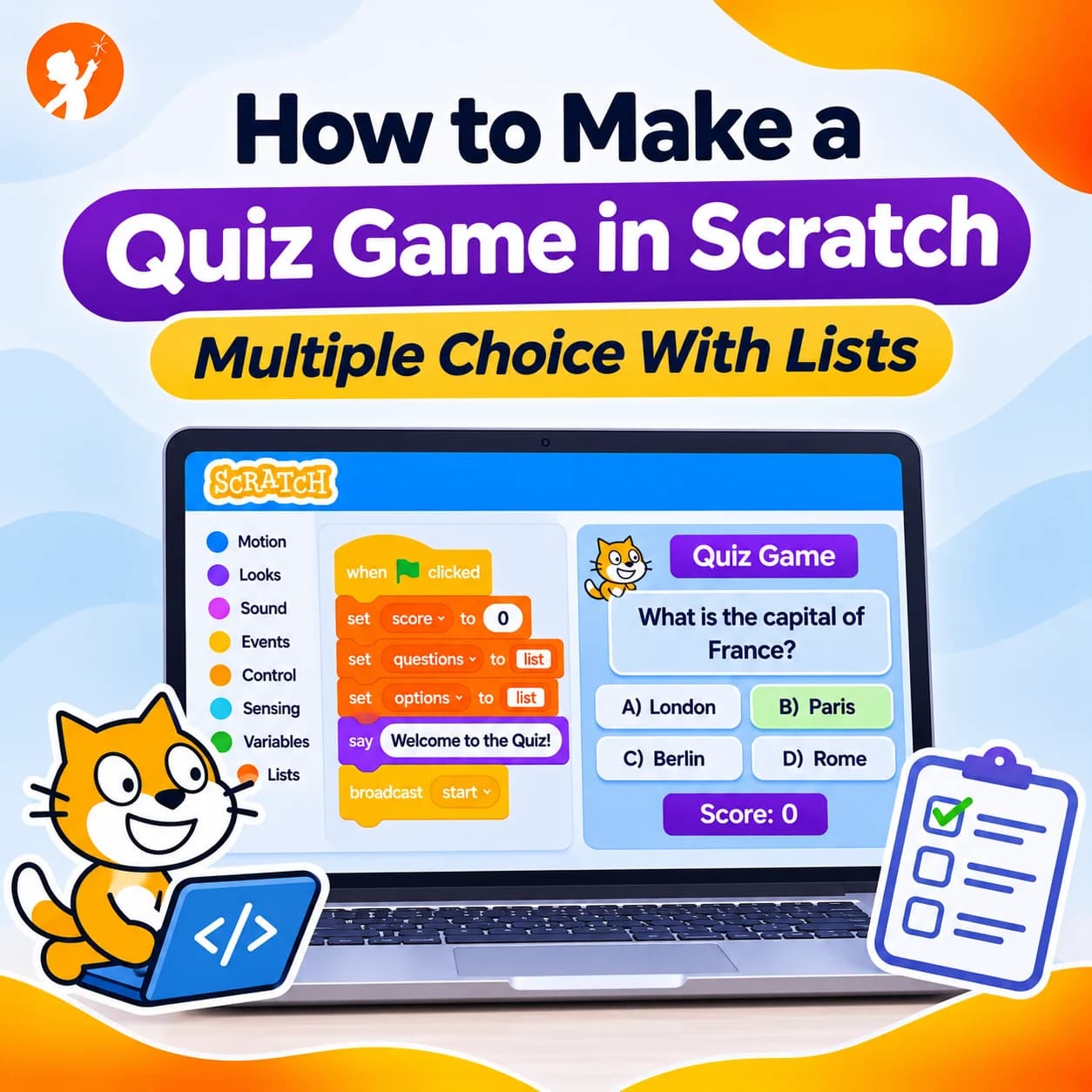
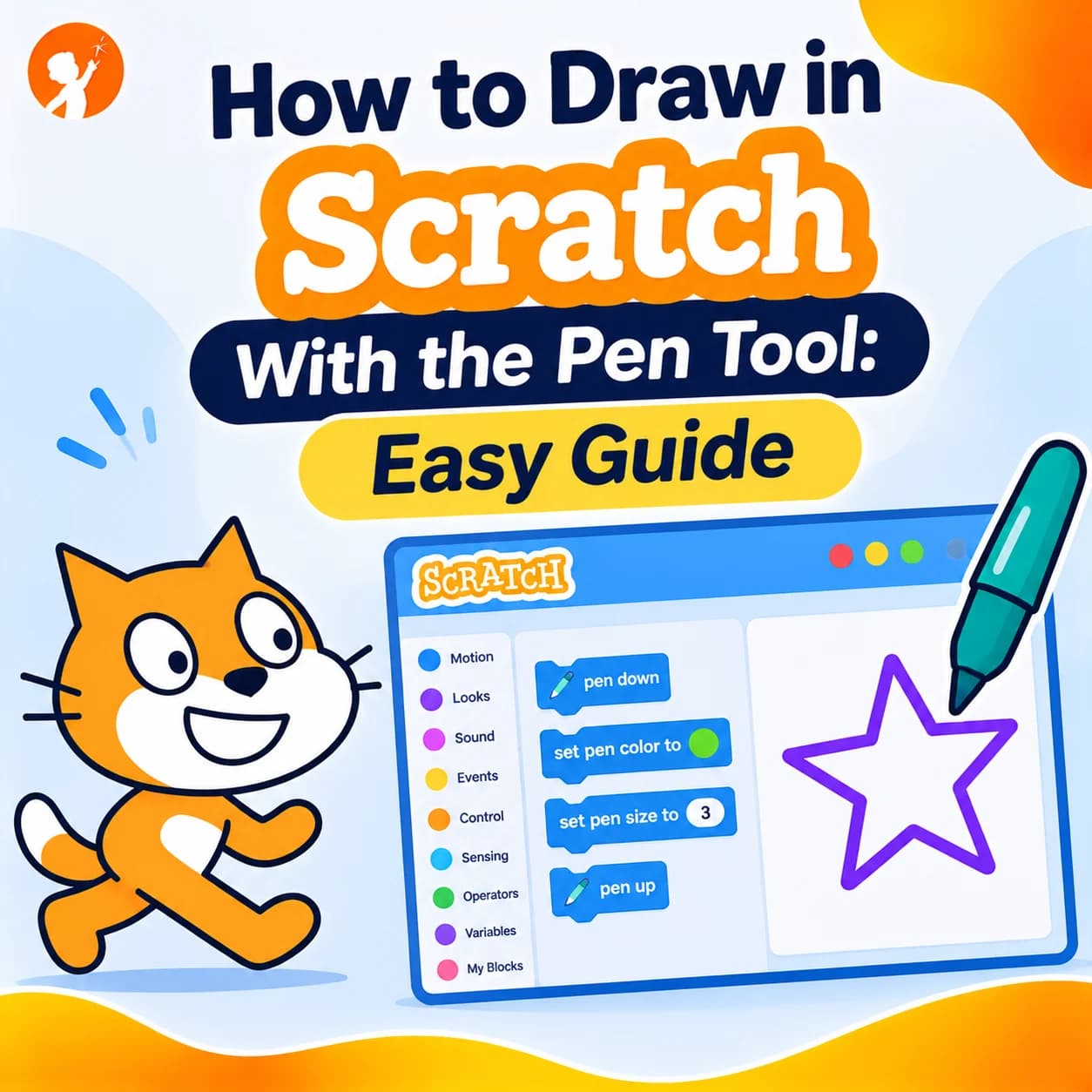
If you are looking for your next project, try one of our step-by-step tutorials: build a Scratch snake game, a quiz game in Scratch or a Flappy Bird game, or draw amazing patterns with the Pen tool. For more inspiration, browse our Scratch game ideas and see the best games on Scratch.
Build Projects Worth Sharing With Junior Coderz
At Junior Coderz, children learn Scratch in live online classes with engineer instructors and finish a project they are proud to share in every lesson. Our Scratch classes for kids cover games, animations and stories, plus good habits like clear instructions and giving credit. Children who love building games can continue with our game development classes. See every option on our courses page.
Help Your Child Build Something to Show the World
Sharing a finished game is a huge confidence boost. In a free trial class, your child builds a live project with one of our engineer instructors, learns new Scratch skills and leaves with something to share. You also get honest advice on the right level and next steps.
- Finished Projects
- Engineer Instructors
- Ages 6 to 16
Your Game Deserves an Audience
Sharing turns a project on your computer into something the world can enjoy. Save it, give it a great title, write clear instructions and click Share. Then read the comments, learn from feedback and keep improving. Every famous Scratch game started as a first share. To see what other young coders are making, visit Junior Coderz or follow us on Instagram.
FAQs
How do you publish a game on Scratch?
Sign in, open your project, save it and click the orange Share button at the top of the editor. Your game then gets a public project page.
Why can't I share my Scratch project?
Usually because your email address isn't confirmed yet. Check your email for the link from Scratch, or ask a parent to check theirs.
Can someone play my Scratch game without an account?
Yes. Anyone with the link can play a shared project in their browser. They only need an account to comment, like or remix.
Can two people work on the same Scratch project?
Not at the same time. Friends can take turns by remixing, move parts with the Backpack, or collect projects together in a studio.
Can I change my project after sharing it?
Yes. Open it, make your changes and click Save now. The shared version updates automatically.
Is it safe for kids to share on Scratch?
Scratch is moderated and designed for children. Kids should still keep personal details private, be kind in comments and report anything unkind.