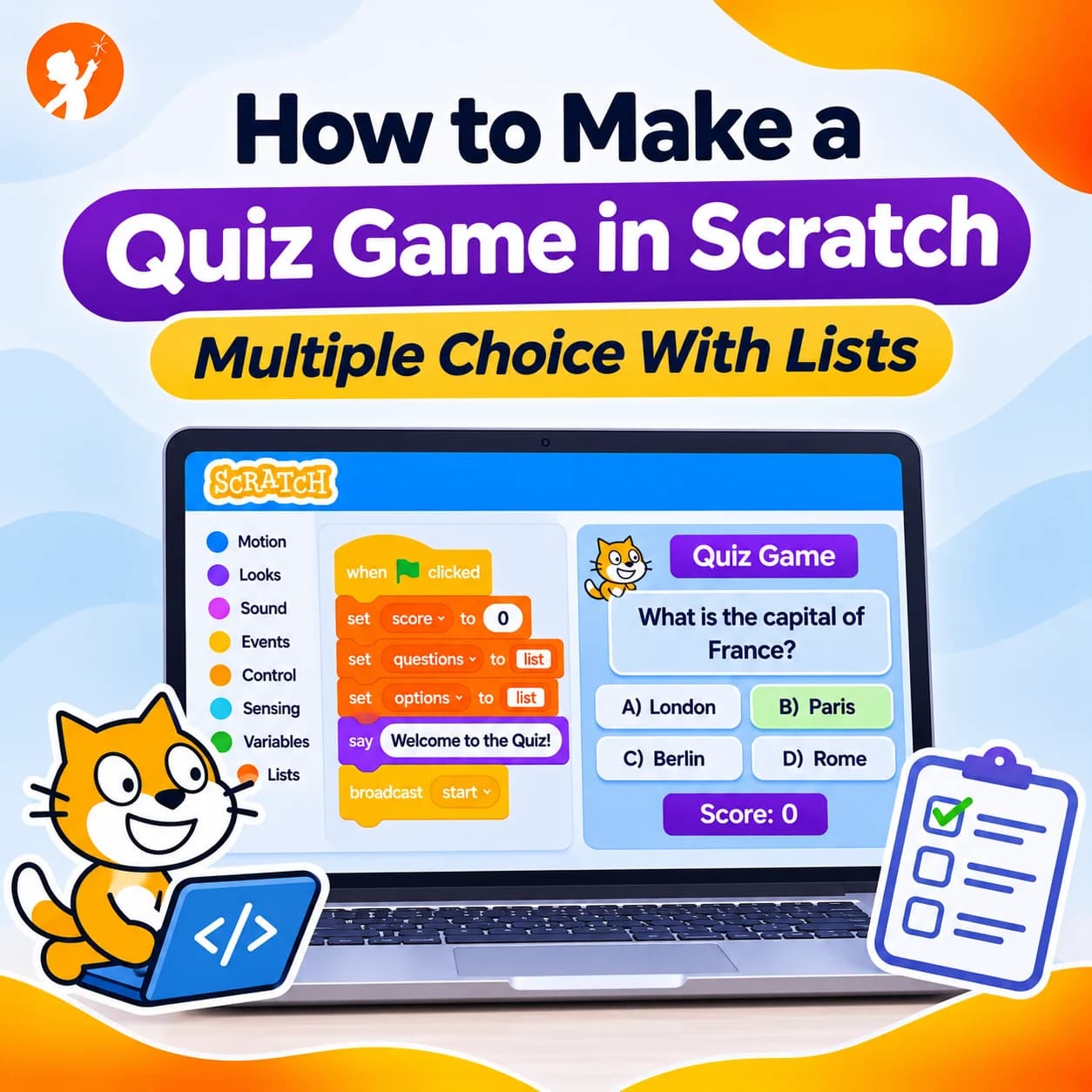
Can you stump your friends with your own questions? In this tutorial, you will make a quiz game in Scratch from scratch: first a simple question-and-answer quiz, then a multiple choice quiz that uses lists, with a score, sounds, clickable answer buttons and a timer.
Quiz games are perfect first projects because you can fill them with anything you love, from maths and science to football, animals or your favourite video game.
How a Scratch Quiz Game Works
Every quiz follows the same loop: show a question, wait for the player's answer, check if it is right, update the score, then move to the next question. In Scratch, the ask and wait block shows a question and a typing box, and the answer block holds whatever the player typed. Add a score variable and some if-statements, and you have a game.
| Part of the quiz | Scratch block or idea |
|---|---|
| Show a question | ask [ ] and wait |
| Read the player's reply | answer |
| Check the reply | if <answer = ...> then ... else |
| Keep score | A score variable |
| Store many questions | Lists |
How to Make a Quiz Game in Scratch, Step by Step
Open Scratch, click Create and choose a fun host sprite, such as a wizard, a robot or the Scratch cat. Then follow these steps.
Step 1: Ask Your First Question
Make a variable called score (For all sprites). Then add this script to your host sprite:
when green flag clicked
set score to 0
ask [What is 7 x 8?] and wait
if <(answer) = [56]> then
    say [Correct!] for 1 seconds
    change score by 1
else
    say [Oops! The answer is 56.] for 2 seconds
end
Click the green flag, type an answer and press Enter. Good news: Scratch ignores capital letters when comparing, so "Mars" and "mars" both count as correct.
Step 2: Add More Questions and a Final Score
Copy the ask and if blocks for each new question, then finish with a message:
say (join [You scored ] (join (score) [ out of 3!])) for 3 secondsThis works, but with 20 questions your script becomes very long. That is where lists come in.
Step 3: Store Questions in Lists
A list is like a variable that holds many items. Go to Variables, click "Make a List" and create three lists: questions, options and answers. Item 1 of each list belongs to question 1, item 2 to question 2, and so on. Add this script to fill them:
when green flag clicked
delete all of [questions]
delete all of [options]
delete all of [answers]
add [What is 7 x 8?] to [questions]
add [A) 54   B) 56   C) 64] to [options]
add [B] to [answers]
add [Which planet is called the Red Planet?] to [questions]
add [A) Mars   B) Venus   C) Jupiter] to [options]
add [A] to [answers]
add [How many sides does a hexagon have?] to [questions]
add [A) 5   B) 8   C) 6] to [options]
add [C] to [answers]
broadcast [start quiz]
Remove the old green flag script from Step 1, because this one now starts the game. Tip: you can also right-click a list on the stage and choose "import" to load questions from a text file.
Step 4: Make the Multiple Choice Quiz Loop
Make one more variable called question number. This script goes through every question in the list, however many you add:
when I receive [start quiz]
set score to 0
set question number to 1
repeat (length of [questions])
    say (item (question number) of [options])
    ask (item (question number) of [questions]) and wait
    if <(answer) = (item (question number) of [answers])> then
        start sound [Coin]
        say [Correct!] for 1 seconds
        change score by 1
    else
        start sound [Oops]
        say (join [The answer was ] (item (question number) of [answers])) for 2 seconds
    end
    change question number by 1
end
say (join [You scored ] (join (score) (join [ out of ] (length of [questions])))) for 3 seconds
The sprite shows the choices in a speech bubble, and the player types A, B or C. Add the sounds from the Sounds tab first. Now adding a new question only takes three "add" blocks.
Step 5: Add Clickable Answer Buttons
Typing is fine, but buttons feel more like a real game show. Paint three button sprites labelled A, B and C. Make a variable called choice, and give each button this script, changing the letter for each one:
when this sprite clicked
set choice to [A]
start sound [Pop]
Then, in the quiz loop, replace the ask block with:
say (join (item (question number) of [questions]) (join [  ] (item (question number) of [options])))
set choice to []
wait until <not <(choice) = []>>
And compare choice instead of answer in the if-statement. Now players click to answer.
Step 6: Add a Countdown Timer
Make a variable called time left and add this to the Stage:
when I receive [start quiz]
set time left to 60
repeat until <(time left) = 0>
    wait 1 seconds
    change time left by -1
end
broadcast [times up]
Then, in your host sprite, add when I receive [times up], show the final score and stop [all]. Now players race the clock.
Fun Quiz Game Ideas for Scratch
- Times tables challenge: use
pick randomto make new maths questions every game. - Guess the animal sound: play a sound and ask which animal made it.
- Flag quiz: change the backdrop to a flag and ask which country it belongs to.
- Personality quiz: instead of right and wrong, add points to different results, such as "Which superhero are you?".
- Levels: easy, medium and hard lists, with the player choosing at the start.
- Lives: three wrong answers and the game is over.
Make an Impossible Quiz on Scratch
The Impossible Quiz style is famous for trick questions with silly, surprising answers. For example: "What is the answer to this question?" where the answer is literally "this question", or a "click the smallest button" question where the real answer is hidden in the corner. Combine the buttons from Step 5 with sneaky hidden sprites, add lives, and make players laugh as they fail. It is a great way to practise creative thinking, as well as coding.
Fixing Common Problems
| Problem | Fix |
|---|---|
| Correct answers marked wrong | Check for extra spaces in the answers list |
| The same question repeats | Make sure "change question number by 1" is inside the repeat loop |
| Lists are empty | The "add to list" script must run before "start quiz" |
| Questions keep doubling | Put "delete all of" blocks at the start |
| The quiz never ends | Use "repeat (length of questions)" instead of "forever" |
Ready for another project? Try the Scratch snake game, explore puzzle games in Scratch, or pick from our Scratch game ideas. Need a refresher on variables? See our guide to variables in Scratch.
What Kids Learn by Making a Quiz
A quiz game looks simple, but it uses real programming ideas: user input with ask and answer, conditions with if-else, variables for score and time, loops to go through every question, and lists to store data. Lists in particular are a big step forward, because almost every app, from games to social media, stores information in lists. Kids also practise writing clear questions, which helps their reading and teaching skills too.
Build Smarter Games With Junior Coderz
At Junior Coderz, children learn Scratch in live online classes with engineer instructors, building games like quizzes, platformers and puzzles while learning variables, lists and logic. Our Scratch classes for kids take beginners step by step to bigger projects, and older students can move on to Python, where they build a quiz in real code. See every option on our courses page.
Build Your Next Game With an Expert
Want to go beyond a basic quiz? In a free trial class, your child builds a live game with one of our engineer instructors, who explains every block and helps fix every bug. You also get honest advice on the right level and the next steps for your child.
- Live Game Building
- Engineer Instructors
- Ages 6 to 16
Now Test Your Friends
You have built a real quiz game with questions stored in lists, multiple choice buttons, a score and a timer. Fill it with your own questions, share it on Scratch and see who can get a perfect score. Then make it harder, funnier or faster: every new idea teaches you something new. To see what other young coders are building, visit Junior Coderz or follow us on Instagram.
FAQs
How do you make a multiple choice quiz in Scratch?
Store each question, its choices and its correct letter in three lists. Then loop through the lists, show the choices and check the player's answer against the answers list.
How do you use lists in a Scratch quiz?
Make lists for questions and answers, and use a question number variable with the "item of list" block to pick the matching question and answer each time.
Is the Scratch answer block case-sensitive?
No. Scratch treats "Mars" and "mars" as the same when comparing, so players don't need to worry about capital letters.
How do you add a score to a quiz in Scratch?
Make a score variable, set it to 0 at the start, and use "change score by 1" whenever the player answers correctly.
How do you make questions random in Scratch?
Set the question number to a random number from 1 to the length of the list. For a random order without repeats, delete each question from a copy of the list after asking it.
What age is this Scratch quiz tutorial for?
Steps 1 and 2 suit children from about 8. Lists, buttons and timers suit children from about 10 who know the basics of Scratch.