
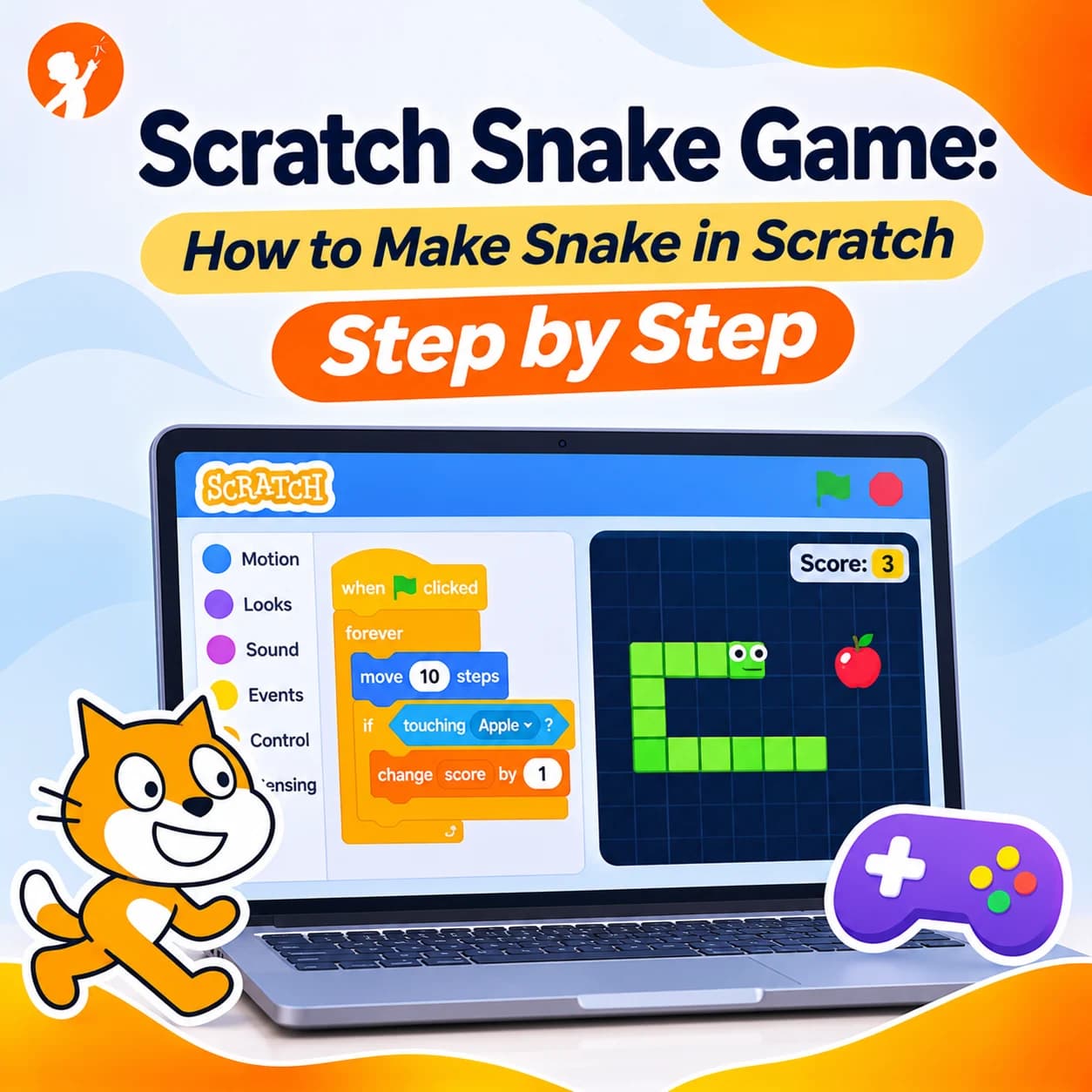
Snake is one of the most famous video games ever made: eat the apple, grow longer, and don't crash into yourself. It is also one of the best games to build when you are learning to code. In this tutorial, you will make your own Scratch snake game from start to finish, with a moving snake, arrow-key controls, apples to eat, a growing tail, a score and a game over screen.
You don't need any experience. If you can drag blocks in Scratch, you can make Snake in Scratch in about an hour.
How the Snake Game Works
Before coding, it helps to understand the plan. The snake's head moves one square at a time in the direction the player chooses. Every time the head moves, it leaves a body piece behind. Each body piece stays for a short time, then disappears. The longer the snake is, the longer each piece stays, which makes the tail look like it is following the head. When the snake eats an apple, the length goes up by one, so the tail grows.
| Part | What it does | Scratch idea used |
|---|---|---|
| Head sprite | Moves and turns with the arrow keys | Motion, events, forever loop |
| Body sprite | Makes the tail behind the head | Clones |
| Apple sprite | Appears in random places to be eaten | Random numbers, sensing |
| Score and Length | Track points and how long the snake is | Variables |
How to Make a Snake Game in Scratch, Step by Step
Open Scratch, click Create, and follow these steps. The code is written below each step in plain words, so you can find the matching blocks.
Step 1: Create the Sprites
Delete the cat sprite. Then paint three new sprites with the Paint tool:
- Head: a green square, about 18 by 18 pixels. Add two small dots for eyes if you like.
- Body: a slightly lighter green square of the same size.
- Apple: a small red circle, about 18 pixels wide.
Keeping the squares a little smaller than 20 pixels leaves a tiny gap between pieces, which makes the crash check work properly. Pick a dark backdrop so the snake stands out.
Step 2: Make the Variables
Go to the Variables category and click "Make a Variable". Create these four, all "For all sprites":
- score: the player's points
- length: how long the snake is
- lastX and lastY: where the head was before its last move
Untick lastX, lastY and length so only the score shows on the stage. New to variables? See our guide to using variables in Scratch.
Step 3: Make the Head Move
Click the Head sprite and add this script. The snake moves 20 steps at a time, which makes it move in a neat grid, like the classic game.
when green flag clicked
go to x: 0 y: 0
point in direction 90
set score to 0
set length to 3
forever
    set lastX to (x position)
    set lastY to (y position)
    create clone of [Body]
    move 20 steps
    wait 0.1 seconds
end
Before each move, the head saves its position in lastX and lastY and creates a body piece there. Click the green flag: the head should slide to the right.
Step 4: Control It With the Arrow Keys
Still in the Head sprite, add four small scripts. The "if" check stops the snake from turning straight back into itself.
when [right arrow] key pressed
if not (direction = -90) then
    point in direction 90
end

when [left arrow] key pressed
if not (direction = 90) then
    point in direction -90
end

when [up arrow] key pressed
if not (direction = 180) then
    point in direction 0
end

when [down arrow] key pressed
if not (direction = 0) then
    point in direction 180
end
Also click the small "direction" setting at the top of the sprite and choose "Don't rotate", so the head doesn't spin upside down.
Step 5: Make the Tail Follow
Now click the Body sprite and add these two scripts. Each clone appears where the head just was, waits, then disappears.
when green flag clicked
hide

when I start as a clone
go to x: (lastX) y: (lastY)
show
wait (length * 0.1) seconds
delete this clone
Because each piece waits longer when the length is bigger, the tail gets longer as the snake grows. Run the game: you should see a snake three squares long. Clones are one of the most useful tools in Scratch, and you will use them in many other games.
Step 6: Add Apples to Eat
Click the Apple sprite and add this script. Multiplying by 20 puts the apple exactly on the snake's grid, so the head lands right on it.
when green flag clicked
go to x: ((pick random -10 to 10) * 20) y: ((pick random -7 to 7) * 20)
forever
    if touching [Head] then
        change score by 1
        change length by 1
        start sound [Pop]
        go to x: ((pick random -10 to 10) * 20) y: ((pick random -7 to 7) * 20)
    end
end
Add the Pop sound from the Sounds tab first. Now every apple adds a point and one more piece to the tail.
Step 7: Add Game Over
Go back to the Head sprite. Inside the forever loop, right after "move 20 steps", add this check:
if <touching [edge]> or <touching [Body]> then
    broadcast [game over]
    stop [all]
end
Then paint a new backdrop that says "Game Over" and add this to the Stage:
when I receive [game over]
switch backdrop to [Game Over]

when green flag clicked
switch backdrop to [Playing]
Name your normal backdrop "Playing". Now the game ends when the snake hits a wall or its own tail. Your Snake game is complete!
Fixing Common Problems
| Problem | Likely cause | Fix |
|---|---|---|
| Game ends straight away | Head is touching a body piece at the start | Make the squares smaller than 20 pixels |
| No tail appears | The Body clone script is missing or the sprite is hidden | Check "show" is inside "when I start as a clone" |
| Snake can't eat the apple | Apple is off the grid | Make sure both x and y are multiplied by 20 |
| Head turns upside down | Rotation style | Set the head to "Don't rotate" |
| Snake reverses into itself | Missing direction check | Add the "if not" check to each arrow key script |
Ways to Level Up Your Scratch Snake
- Speed up: make the wait time shorter as the score goes up, so the game gets harder. Remember to use the same speed in the Body's wait.
- High score: add a "high score" variable that saves the best result.
- Golden apple: add a rare apple worth 5 points that disappears after a few seconds.
- Walls that wrap: instead of game over, make the snake appear on the other side of the screen.
- Obstacles: add rocks the snake must avoid.
- Music: add a background tune; see our guide to music in Scratch games.
- Two players: make a second snake controlled with the W, A, S and D keys.
Want another game to build next? Try our Flappy Bird in Scratch tutorial, the Scratch platformer tutorial, or pick from our list of Scratch game ideas.
What Kids Learn by Making Snake
This one small game teaches some of the most important ideas in coding. Children use variables to track the score and length, loops to keep the game running, events for the arrow keys, if-statements for eating and crashing, random numbers for the apple and clones for the tail. These are the same building blocks used in Python, JavaScript and every other language, so making Snake is real progress, not just play.
Build Bigger Games With Junior Coderz
At Junior Coderz, children learn Scratch in live online classes with engineer instructors, building a new game or animation in every lesson. Our Scratch classes for kids start with the basics and move on to clones, levels and full games like this one. Children who love making games can continue with our game development classes and later Python. See every option on our courses page.
Make Your Next Game With an Engineer
Stuck on a bug, or ready for a bigger challenge? In a free trial class, your child builds a game live with one of our engineer instructors, who explains each step and answers every question. You also get honest advice on the right level and next steps for your child.
- Build a Real Game
- Engineer Instructors
- Ages 6 to 16
Share Your Snake With the World
You have built a full game: a snake that moves, grows, scores and crashes, all with your own code. Click Share in Scratch so friends and family can play it, challenge them to beat your high score, then add one new feature at a time. Every upgrade teaches something new. To see what other young game makers are creating, visit Junior Coderz or follow us on Instagram.
FAQs
Is it hard to make a snake game in Scratch?
No. With this guide, most beginners can finish a working snake game in Scratch in about an hour. The trickiest part is the tail, which uses clones.
How do you make the snake grow in Scratch?
Each body clone waits for a time based on the length variable before it disappears. When the snake eats an apple, the length goes up, so the tail stays longer.
How do you stop the snake going backwards?
In each arrow key script, check the current direction first. Only turn if the snake is not already moving the opposite way.
Why does my snake game end straight away?
The head is probably touching a body piece. Make the head and body squares slightly smaller than 20 pixels so they don't touch.
What age is this Scratch snake tutorial for?
It suits children from about 9 or 10 who have used Scratch before. Younger children can follow along with an adult's help.
Can I make the snake faster?
Yes. Make the wait time in the head's loop shorter, and use the same number in the body's wait so the tail stays the right length.