
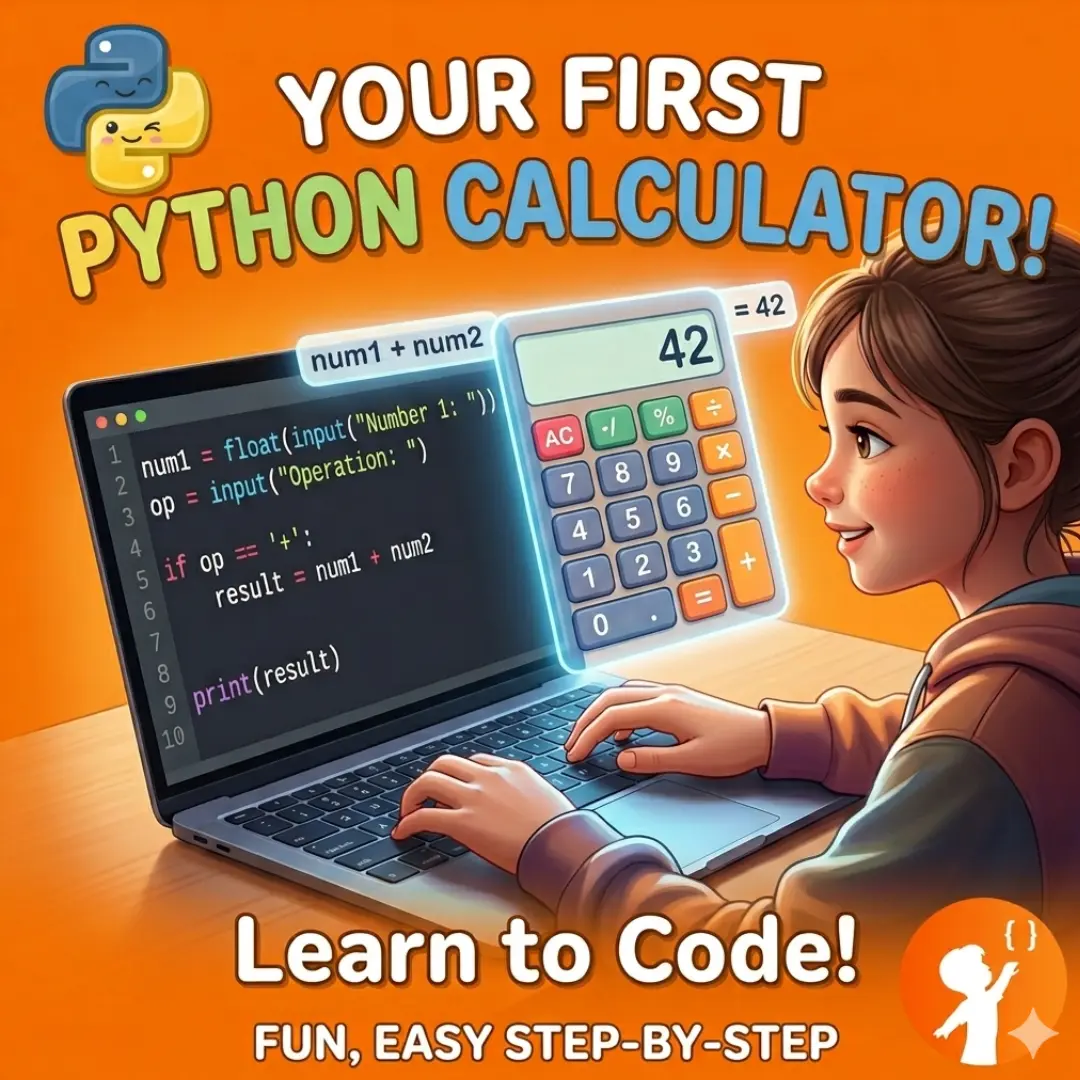
Learning how to code can sometimes feel like trying to read an alien language. You watch videos, read guides, and stare at the screen, hoping it will all make sense. But the truth is, the best way to master Python for beginners is to actually build something yourself. One of the best simple coding projects you can start with is a basic Python calculator.
In this guide, we will walk you through exactly how to build a simple Python calculator.
Why Building a Calculator is a Great First Project
When you first start coding, you need projects that build your confidence. If you try to build a complex video game on day one, you will likely get frustrated and quit.
A calculator is the perfect middle ground. It is simple enough that you can finish it in one sitting, but it teaches you several highly important programming concepts:
- Defining Functions: You will learn how to create blocks of code that perform specific tasks, like addition or subtraction.
- Taking User Input: You will learn how to make your program interactive by asking the user to type in numbers and choices.
- Using Logic: You will use conditional statements to tell the computer what to do based on what the user chooses.
What You Need to Get Started
Before we start typing code, you need to make sure your computer is ready. You only need two basic tools for this project.
1. Python Installed on Your Computer
You need the Python programming language installed on your machine so it can understand the code you write. You can download the newest version for free directly from the official Python website. Follow the simple installation steps for your specific operating system (Windows or Mac).
2. A Code Editor
A code editor is just a digital notebook where you type your code. When you install Python, it usually comes with a simple editor called IDLE. This works perfectly for beginners. If you want something a bit more modern, you can download a free editor like Visual Studio Code or Google Colab.
Step-by-Step Breakdown: Writing the Code
Instead of throwing a massive block of code at you all at once, let us learn how to make a calculator in Python step by step. We will break the project down into three easy phases.
Step 1: Defining the Math Functions
First, we need to teach our calculator how to do basic math. In Python, we use “functions” to group instructions. We will create four separate functions: one for adding, one for subtracting, one for multiplying, and one for dividing.
The word def is used to define a function. We also need to give the function two numbers to work with, which we will call x and y. Inside the function, we simply tell Python to return the result of the math problem.
Step 2: Taking User Input
A calculator program in Python is useless if you cannot tell it what numbers to calculate! Hence, we have to ask the user what kind of math they want to do and what numbers they want to use.
We use the input() function to ask the user a question and wait for their answer. We will show them a small menu so they can pick addition, subtraction, multiplication, or division. Then, we will ask them to type their first number and their second number.
Step 3: Using Conditional Statements (if/elif/else)
Now we have the math functions, and we have the user’s choices. The final step is to connect them. We need to tell the computer: If the user chose addition, then use the addition function. If they chose subtraction, use the subtraction function.
We do this using if, elif, and else statements. These act like traffic cops, directing the computer down the right path based on what the user typed.
The Full Python Calculator Code
Now that you understand the basic building blocks, let us put it all together. Copy and paste the following code into your editor, save it as a Python file (like calculator.py), and run it!
# Step 1: Define the math functions

def add(x, y):
   return x + y

def subtract(x, y):
   return x - y

def multiply(x, y):
   return x * y

def divide(x, y):
   return x / y

# Step 2: Show the menu and get user input

print("Select operation.")
print("1. Add")
print("2. Subtract")
print("3. Multiply")
print("4. Divide")

choice = input("Enter choice (1/2/3/4): ")

num1 = float(input("Enter first number: "))
num2 = float(input("Enter second number: "))

# Step 3: Use logic to perform the right calculation

if choice == '1':
   print("Result:", add(num1, num2))

elif choice == '2':
   print("Result:", subtract(num1, num2))

elif choice == '3':
   print("Result:", multiply(num1, num2))

elif choice == '4':
   if num2 == 0:
       print("Error: You cannot divide by zero!")
   else:
       print("Result:", divide(num1, num2))

else:
   print("Invalid Input. Please choose a valid operation.")
Code Explanation in Plain English
Now, let us review exactly what each part of that code actually means. Understanding why the code works is just as important as getting it to run.
The def Blocks:
At the top, we define our math tools. def add(x, y): tells Python, “I am creating a tool called ‘add’ that needs two pieces of data, which I will call x and y.” The return x + y line simply hands the calculated answer back to us.
The print Statements:
print() just shows text on the screen. We use it to print a friendly menu so the user knows what their options are.
The input Variables:
When we write choice = input(…), we are saving whatever the user types into a box called choice.
When we ask for the numbers, we wrap the input in float(). This is incredibly important. By default, Python treats everything a user types as a string. float() tells Python to treat the input as a number
The if / elif / else Block:
This is the brain of the calculator.
We say, if choice == ‘1’:, which means “If the user typed the number 1”. Notice the double equals sign ==. In Python, a single = assigns a value to a box, but a double == asks a question: “Are these two things equal?”
If the choice is ‘1’, we call our add() function and print the result. If it is ‘2’, we jump to the elif section and subtract.
Handling Errors:
Look closely at the division section (choice == ‘4’). We added an extra rule there. You cannot divide a number by zero in math; it causes an error. So, we put a smaller if statement inside to check if num2 is zero. If it is, we print a friendly error message instead of letting the program crash.
Finally, the else: at the very bottom catches any bad inputs. If the user types “apple” instead of choosing 1, 2, 3, or 4, the program will gently tell them their input was invalid.
Take Your Skills Further with JuniorCoderz
Building this calculator using Python is a massive first step. You just learned how to use functions, capture user input, and write logic. However, learning to code entirely on your own can sometimes feel lonely and confusing when you hit a wall.
This is where having expert guidance makes all the difference. At JuniorCoderz, we specialize in helping young learners turn their coding curiosity into real-world skills. Our interactive, live classes guide students through simple coding projects just like this one, ensuring they understand the “why” behind the code.
Instead of getting stuck on frustrating errors alone, students at JuniorCoderz learn in a supportive environment with experienced trainers. We take complex ideas and break them down so they are fun, easy, and engaging. If you want to accelerate your child’s learning journey, JuniorCoderz provides the perfect roadmap to move from total beginner to confident programmer.
Final Verdict
You successfully learned how to build a simple calculator in Python. By defining your math functions, collecting input from the user, and using conditional logic to tie it all together, you created a fully functional application. Practice writing this code a few times without looking at the guide to lock it into your memory. Coding is a journey. Keep experimenting, keep building, and keep having fun.
Frequently Asked Questions (FAQs)
Python reads very much like plain English. It strips away confusing symbols and complex rules found in older languages.
Yes, once you master this text-based calculator, you can learn how to build a visual calculator using Python library called Tkinter. Tkinter allows you to create real windows, click real buttons, and see visual results.
It crashes because the program expects a number, but a letter can’t be converted into a number.
So Python throws an error when it tries to turn your input into a float.
Once you finish the calculator, great next projects include building a number guessing game, a digital dice roller, a rock-paper-scissors game against the computer, or a random password generator.