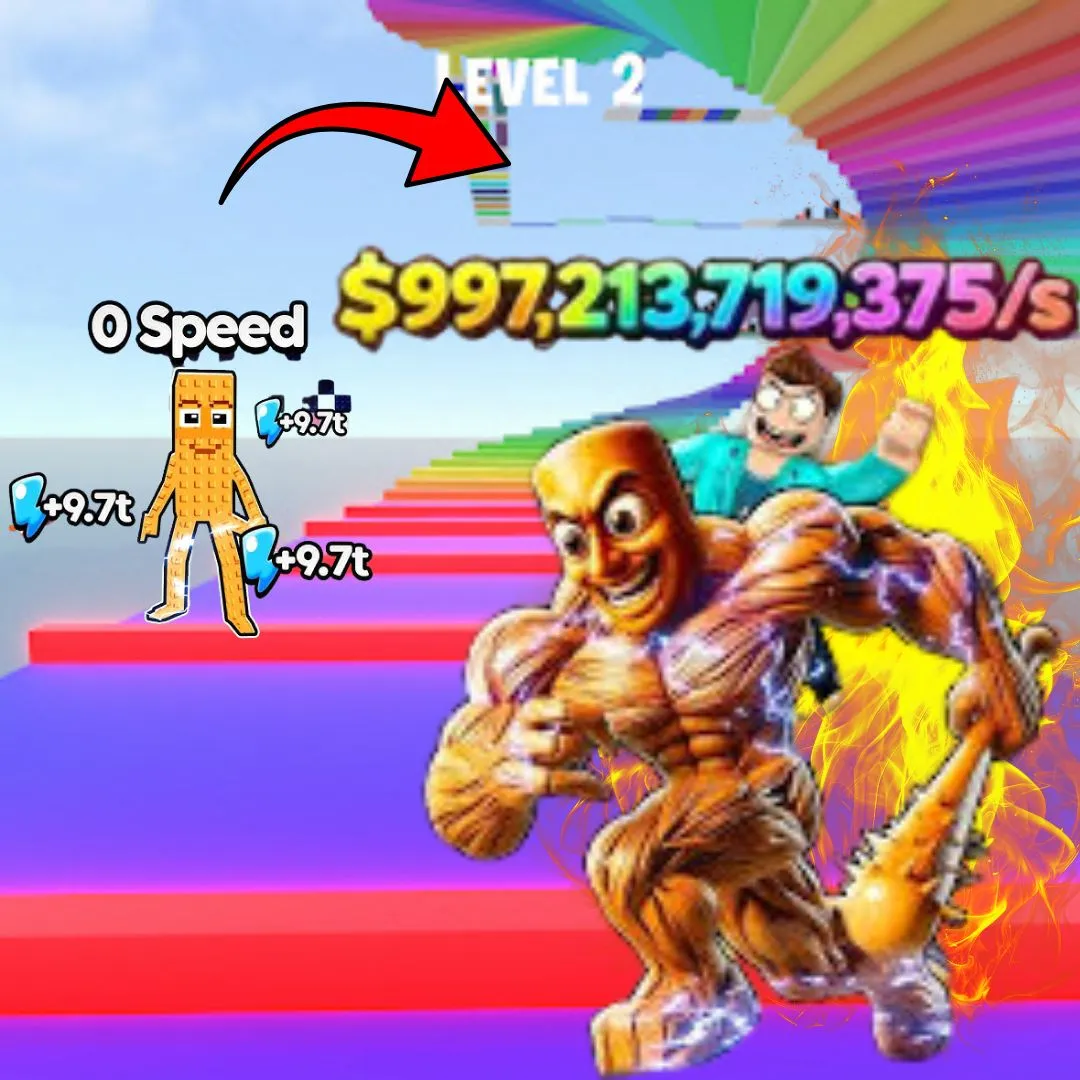

If your kid has been glued to their screen tapping away at clicker games, you already know how addictive they are. Now imagine channeling that obsession into something productive. In this tutorial, we are going to show you how to build a Brainrot Clicker Simulator in Scratch that captures the same chaotic, meme-fueled energy that makes the roblox brainrot clicker trend so wildly popular among young gamers. Instead of just playing someone else’s game, your child will design their own from the ground up, complete with click counters, upgrade shops, silly sound effects, and meme-worthy characters. This is one of those fun coding projects that disguises serious learning as pure entertainment. Kids will pick up variables, conditionals, loops, and event handling without ever feeling like they are studying. Whether you are a parent searching for creative screen time, an educator looking for classroom-ready Scratch programming activities, or a young coder who wants to build something hilariously awesome, this guide has everything you need.
What Is a Roblox Brainrot Clicker and Why Recreate It in Scratch?
The brainrot clicker phenomenon started as a meme-inspired game genre where players tap furiously to collect bizarre items, unlock absurd upgrades, and watch numbers climb to ridiculous heights. The “brainrot” part comes from the intentionally silly, over-the-top internet humor baked into every element of the game. Characters might be distorted meme faces, upgrades could be things like “Galaxy Brain Boost” or “Turbo Skibidi Multiplier,” and the entire experience is designed to be as funny and chaotic as possible. That combination of humor, progression, and rapid feedback loops is what makes clicker games so irresistible to kids.
Recreating this experience in Scratch is brilliant for several reasons. First, Scratch’s visual block-based coding makes it accessible to beginners as young as seven. There is no intimidating syntax to learn. Second, clicker games are mechanically simple but conceptually rich, which means kids encounter real programming concepts like variables, multiplication, conditional logic, and user interface design while building something they genuinely want to play. If your child enjoyed building a Dress to Impress Game or a Sprunki Quiz Game in Scratch, this project takes their skills to a whole new level of fun and complexity.
Planning Your Roblox Brainrot Clicker: The Game Design Blueprint
Before writing a single block of code, smart coders plan their project. This design phase is where kids learn to think like real game developers. For a brainrot clicker simulator, the core gameplay loop is simple: the player clicks a big button, earns points (let’s call them “Brain Cells”), and spends those points on upgrades that make each click worth more. The trick is layering in enough humor, visual chaos, and progression to keep the player hooked. Grab a notebook and sketch out these key elements before opening Scratch.
| Game Element | Details |
|---|---|
| Main Button | A big, clickable meme character sprite |
| Currency | “Brain Cells” displayed prominently on screen |
| Click Power | Starts at 1, increases with upgrades |
| Upgrade Shop | 3 to 5 upgrades with increasing costs |
| Auto-Clicker | Passive income that earns Brain Cells over time |
| Visual Feedback | Screen shake, size changes, particle effects on click |
| Sound Effects | Silly pop, ding, and meme sounds on each action |
This kind of structured planning is called computational thinking, and it is a core skill in every coding for kids program. Breaking a big, exciting idea into smaller, manageable pieces is exactly how professional developers at major studios approach game design. For more on how this mindset builds real-world skills in young learners, check out this post on engineering mindset lessons for kids.
Setting Up Sprites and the Stage for Your Brainrot Clicker Game
Open Scratch and let the creative chaos begin! The first thing you need is your main clickable character. This is the star of your brainrot clicker simulator, so make it memorable. Draw a big, goofy face in the Scratch costume editor, or upload a funny image you have created. The sillier the better. Think distorted cartoon faces, wobbling eyes, or a character wearing a tiny top hat for no reason at all. Make the sprite large enough to be an easy click target, roughly 200 by 200 pixels works great.
Next, design your backdrop. A good clicker game backdrop is colorful but not distracting. Try a simple gradient background in bright colors, or draw a chaotic “internet meme wall” with doodles and patterns. You will also need to create additional sprites for your upgrade shop buttons. Each upgrade gets its own small sprite with a label and a price tag. Place these along the right side or bottom of the stage so the main click area stays clean and centered. Finally, add a text sprite or use Scratch’s built-in “say” blocks to display the Brain Cells counter at the top of the screen. If you want to explore more ways to design engaging game interfaces, the Game Development track at Junior Coderz covers this in depth.
🧠 Fun Tip: Give your upgrades ridiculous brainrot-themed names! Instead of “Double Click,” call it “Sigma Grindset Boost.” Instead of “Auto Clicker,” try “Skibidi Auto-Tap 3000.” The funnier the names, the more kids will want to keep playing and building!
Coding the Click Counter: The Heart of Every Roblox Brainrot Clicker
The click counter is the engine that powers your entire game. Every tap on the main character sprite should add points to the player’s Brain Cells total. This is where kids get their first taste of variables in action. You will create two variables: one called “brainCells” to track the player’s total currency, and another called “clickPower” to track how many Brain Cells each click is worth. When the game starts, brainCells is set to 0 and clickPower is set to 1. Every time the player clicks the main sprite, brainCells increases by whatever clickPower currently equals.
when green flag clicked
set [brainCells v] to (0)
set [clickPower v] to (1)
set size to (100) %
when this sprite clicked
change [brainCells v] by (clickPower)
play sound [pop v]
change size by (10)
wait (0.05) seconds
change size by (-10)
Notice the size change trick at the bottom. When the sprite briefly grows and then shrinks back, it creates a satisfying “bounce” effect that makes every click feel impactful. This tiny detail is what separates a basic project from a polished game, and it is the same kind of feedback loop that professional clicker games use to keep players engaged. The pop sound adds another layer of satisfaction. Kids who enjoy this kind of micro-interaction design would also love building a Scratch Music Maker, where sound design takes center stage.
Building the Upgrade Shop for Your Brainrot Clicker Simulator
An upgrade shop transforms a simple clicker into an addictive experience with real strategy. The shop gives players a reason to keep clicking because they are always saving up for the next big purchase. For our brainrot clicker simulator, we will create three upgrades that get progressively more expensive and more powerful. Each upgrade is its own sprite with its own code, and the logic follows the same pattern: when the player clicks the upgrade sprite, the game checks if they have enough Brain Cells. If they do, the cost is subtracted, the bonus is applied, and the price goes up for the next purchase.
| Upgrade Name 🧠 | Starting Cost | Effect |
|---|---|---|
| Sigma Grindset Boost | 50 Brain Cells | +1 Click Power |
| Skibidi Auto-Tap 3000 | 200 Brain Cells | +1 Auto Brain Cell per second |
| Galaxy Brain Multiplier | 500 Brain Cells | Doubles current Click Power |
when green flag clicked
set [boostCost v] to (50)
when this sprite clicked
if <(brainCells) >= (boostCost)> then
change [brainCells v] by ((-1) * (boostCost))
change [clickPower v] by (1)
set [boostCost v] to ((boostCost) * (1.5))
play sound [coin v]
else
say [Not enough Brain Cells!] for (1) seconds
end
The multiplier on the cost (1.5x after each purchase) creates an exponential growth curve that keeps the game challenging. Players can never just buy infinite upgrades because each one costs more than the last. This is a beautiful introduction to mathematical concepts like exponential growth and resource management, all hidden inside a game that feels like pure brainrot fun. The same conditional logic pattern applies to every upgrade sprite, just with different variable names and effects.
Adding an Auto-Clicker Feature to Your Roblox Brainrot Clicker
The auto-clicker is what turns a frantic tapping game into a satisfying idle experience. Once the player buys the “Skibidi Auto-Tap 3000” upgrade, Brain Cells should start accumulating passively, even when the player is not clicking. This feature teaches kids about loops and timing in Scratch programming, because the auto-clicker runs continuously in the background using a “forever” loop with a “wait 1 second” block inside it.
when green flag clicked
set [autoRate v] to (0)
forever
if <(autoRate) > (0)> then
change [brainCells v] by (autoRate)
end
wait (1) seconds
end
When the player purchases the Skibidi Auto-Tap upgrade, its code simply increases the “autoRate” variable by 1. The forever loop on the stage handles the rest, checking every second whether autoRate is greater than zero and adding that amount to brainCells automatically. Multiple purchases stack, so buying the upgrade three times means earning 3 Brain Cells per second passively. This system mirrors how real idle games work, and kids quickly start strategizing about whether to invest in click power or auto income. That kind of strategic thinking is a foundational skill in both game design and Python problem-solving.
Making It Hilariously Chaotic: Visual Effects for Your Roblox Brainrot Clicker
A roblox brainrot clicker without visual chaos is like a pizza without cheese. The whole point is sensory overload in the most entertaining way possible. Let’s add some effects that make the game feel absolutely unhinged. Start with a “screen shake” effect. You cannot actually shake the stage in Scratch, but you can fake it by rapidly moving the main sprite a few pixels in random directions and snapping it back to center. Layer in color-changing backdrops that shift every time the player hits a milestone (100 Brain Cells, 500, 1000, and so on). Add floating “+1” text clones that pop up at random positions near the click point and fade away after half a second.
when I start as a clone
go to [random position v]
show
set [ghost v] effect to (0)
repeat (10)
change y by (5)
change [ghost v] effect by (10)
end
delete this clone
The clone floats upward while gradually becoming transparent, then deletes itself. This creates the classic “damage number” effect you see in every professional clicker game. To trigger it, add a “create clone of [FloatingText]” block inside the main sprite’s click code. For even more brainrot energy, randomize the sprite’s color effect on every click using “change color effect by 25.” The character will cycle through rainbow colors with every tap, looking perfectly ridiculous. Kids who love experimenting with visual effects like this should also explore Scratch Motion Sensing Games, where webcam-based interactivity creates a whole different kind of visual magic.
Sound Design: Making Your Brainrot Clicker Sound Absurdly Fun
Sound is half the experience in any roblox brainrot clicker style game. The right sound effects make every click feel rewarding and every upgrade feel like a celebration. Scratch comes with a built-in sound library that has plenty of useful options, and you can also record your own sounds using the microphone tool. For the main click, use a short “pop” or “boing” sound. For upgrades, try a “coin” or “magic wand” effect. When the player hits a major milestone, blast a trumpet fanfare or an applause track.
Here is a pro move that takes the audio to another level: pitch-shift the click sound based on how fast the player is clicking. Use a variable that tracks clicks per second, and apply a “set pitch effect” block that increases the pitch as the click speed rises. Rapid clicking will make the pops sound higher and faster, creating an escalating frenzy that perfectly matches the brainrot aesthetic. You can learn more about creative sound programming in our tutorial on building a Scratch Chatbot, which also uses dynamic audio responses.
Advanced Extensions: Level Up Your Brainrot Clicker Even Further
Once the core game is running smoothly, it is time to push boundaries and add features that transform a good project into an incredible one. This is where kids transition from following instructions to genuine creative problem-solving. Here are five extension ideas that each teach different programming concepts and take the game further.
| Extension Idea | Concept Learned | Difficulty |
|---|---|---|
| Prestige System (reset for permanent bonus) | Data persistence, multiplication | Hard |
| Achievement Badges | Conditional checks, lists | Medium |
| Boss Battles (click to defeat a boss) | Health variables, timers | Hard |
| Random Events (2x bonus for 10 seconds) | Randomization, broadcasts | Medium |
| Leaderboard Display | Lists, sorting logic | Easy |
A prestige system is particularly interesting because it mirrors real idle game design. When the player reaches a certain Brain Cell threshold (say 10,000), they can “prestige” which resets everything to zero but gives a permanent multiplier on all future earnings. This teaches kids about long-term strategy and delayed gratification, concepts that extend far beyond gaming. Students ready for this level of complexity are the exact learners who excel in the Algorithm Avengers program at Junior Coderz, where teens tackle expert-level challenges in Python, web development, and AI.
Skills Kids Build While Creating a Brainrot Clicker Simulator
Behind all the memes and silly sounds, this project is packed with genuine learning. Building a brainrot clicker simulator teaches kids the same core skills that power every app, website, and game they use daily. Variables track data like Brain Cells, click power, and upgrade costs. Conditional logic determines whether a player can afford an upgrade or has hit a milestone. Loops drive the auto-clicker and animation systems. Event handling connects mouse clicks to in-game actions. And cloning creates dynamic visual effects like floating text. These are foundational concepts in Scratch coding that transfer directly to more advanced languages like Python and JavaScript.
Beyond the technical skills, kids also develop creative thinking by designing characters and naming upgrades, mathematical reasoning by balancing costs and growth curves, project management by planning before coding, and resilience by debugging the things that inevitably break. That last one is especially important. Debugging is not failure. It is the process of figuring out why something does not work and fixing it, which is a skill that applies to every area of life. To see how the best online coding classes structure these skills into a full learning journey, explore the programs available at Junior Coderz.
Ready to Turn Clicks Into Real Coding Skills?
If this brainrot clicker project got your child excited about coding, imagine what they could build with a real instructor guiding them step by step! At Junior Coderz, kids aged 6 to 18 learn Scratch programming, game development, Python, AI, and so much more through live, interactive online classes led by professional engineers. Every class is packed with hands-on projects just like this one, where students create real games, apps, and animations while mastering coding concepts that prepare them for the future.
Whether your child is a complete beginner or already building projects, we have a program designed for their exact age and skill level. Our AI Hybrid Course takes young learners into the world of machine learning and automation, while our Scratch workshops turn creative ideas into playable games. Do not just take our word for it. Book a completely free trial class and let your child experience the magic firsthand. Follow us on Instagram and Facebook for daily coding inspiration, student showcases, and tips for parents!
🚀 Book Your Free Trial ClassConclusion: From Brainrot to Brain Power
Creating a Brainrot Clicker Simulator in Scratch is one of the most entertaining ways for kids to learn real programming skills. Through this single project, young coders explore variables, conditionals, loops, cloning, event handling, and user interface design. They practice planning before building, balancing game mechanics with math, and polishing their creation with sound and visual effects. Most importantly, they experience the thrill of turning an idea into a working, playable game that they built entirely on their own.
The beauty of coding is that every project opens the door to the next one. Once your child finishes this clicker, they will already be dreaming up extensions, sequels, and entirely new games. That kind of creative momentum is what separates casual interest from lifelong passion. Whether they continue exploring beginner coding games in Scratch or graduate to advanced challenges in Python programming and AI, the skills they build today will serve them for decades to come. And if they want expert guidance along the way, Junior Coderz is here to help at every stage. Connect with us on LinkedIn to stay updated on new courses, student stories, and the latest in coding education. Now stop reading and start clicking. Your brainrot masterpiece is waiting to be built!
FAQs
Kids aged 8 to 14 will get the most out of this project. Younger kids (8 to 10) can build the basic click counter and one or two upgrades, while older kids (11 to 14) can add auto-clickers, prestige systems, and boss battles. Scratch is designed to be accessible at every skill level, so anyone who can read basic instructions can get started.
No prior experience is required! This tutorial starts from the basics. However, kids who have already explored simple Scratch projects like animations or quizzes will find it easier to follow along. The Scratch Coding program at Junior Coderz is a great place to build those foundational skills first.
A basic version with the click counter, one upgrade, and sound effects can be built in about 1 to 2 hours. Adding a full upgrade shop, auto-clicker, visual effects, and advanced extensions like prestige or boss battles could take 4 to 6 hours spread across multiple sessions. The project is easy to save and return to over several days.
Absolutely! Scratch has a built-in community where kids can publish their projects and share a direct link with friends and family. Anyone can play the game in a web browser without downloading anything. It is a wonderful way for young coders to feel proud of their work and get feedback from players around the world.
After mastering a clicker game, kids are ready for more complex projects like platformer games, interactive stories, or motion sensing games. When they outgrow Scratch, Python is the ideal next step. Junior Coderz offers programs like the AI Hybrid Course and Algorithm Avengers that bridge the gap from block-based coding to real-world programming languages.