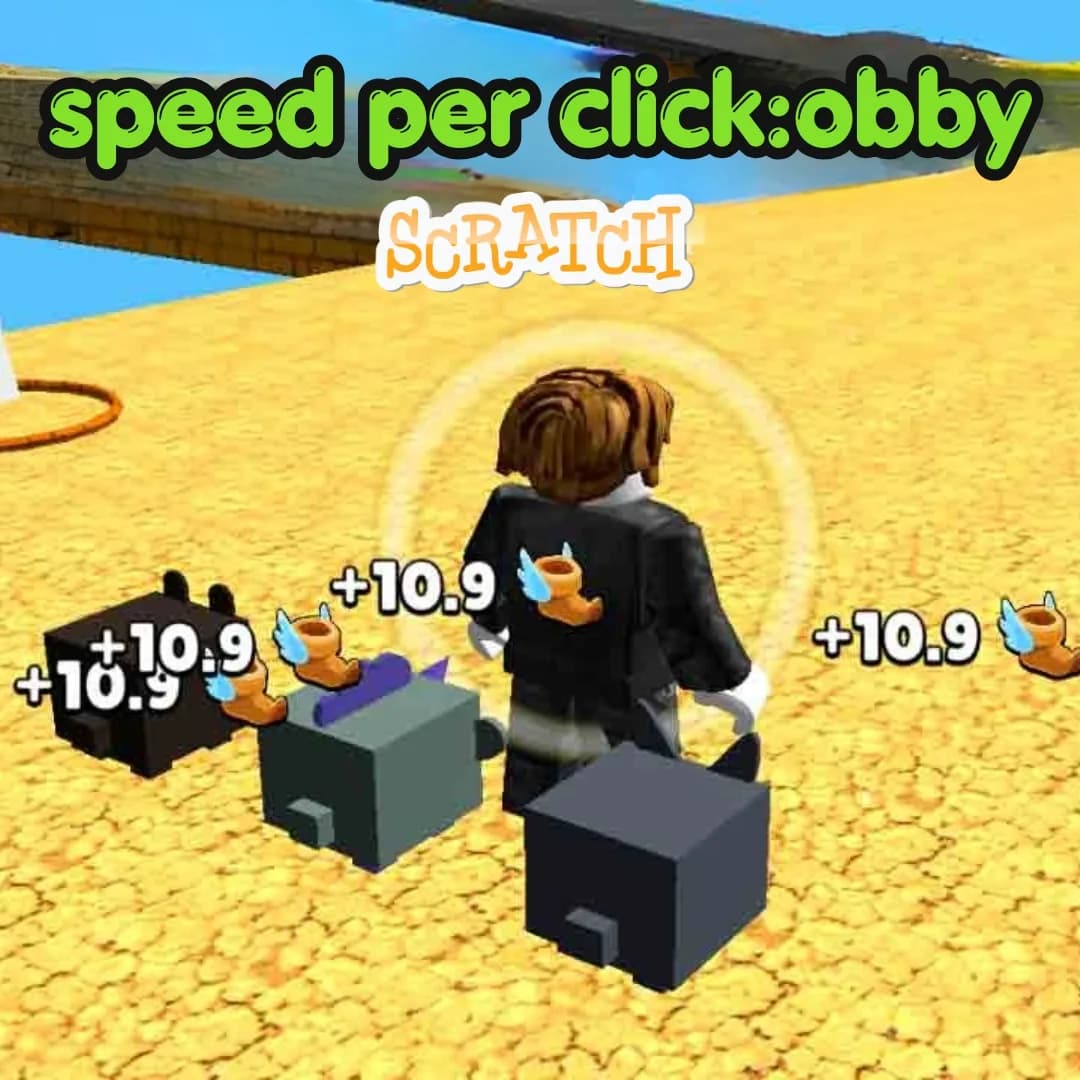
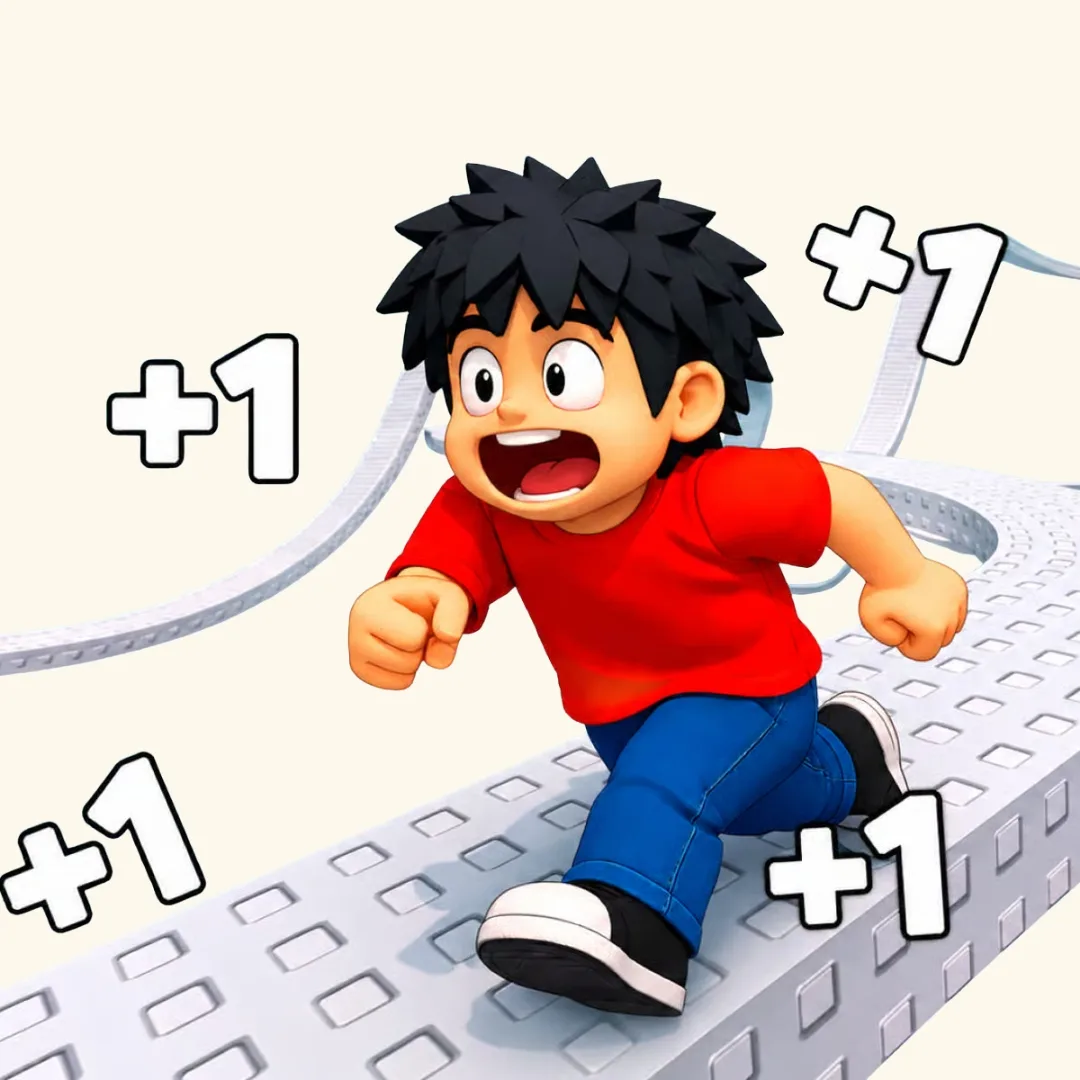
Ready to race across wobbling platforms, dodge lava lasers, and beat the clock? In this tutorial, young creators will build a speed per click obby in Scratch with jumping, timed challenges, checkpoints, and a leaderboard for the fastest finishers. It is an energetic project that turns playtime into problem-solving time. Kids design a colorful world, tell an original story, test game physics, and discover how developers use variables, conditions, broadcasts, and lists to make games exciting.
This guide is ideal for kids, parents, and educators looking for beginner coding games that teach real skills without losing the fun. Open Scratch, choose a hero, and prepare for the fastest mission in Pixel Peak.
Table of Contents- Plan the Game
- Meet the Story
- Build the Course
- Code Movement
- Add the Timer
- Create Checkpoints
- Build the Leaderboard
- Test and Improve
- Learn with Junior Coderz
- Conclusion
- FAQs
Plan Your Speed Per Click Obby
Great games begin with a small plan. Sketch six platforms and mark the start, finish, hazards, and checkpoints. Keep the first jumps easy, then gradually increase the challenge. This creates a fair difficulty curve and teaches young designers to think about the player’s experience.
| Game Part | Scratch Tool | Job |
|---|---|---|
| Player | Motion and sensing | Runs and jumps |
| Platforms | Backdrop colors | Create safe paths |
| Timer | Variables | Measures each run |
| Leaderboard | Lists | Stores best times |
New coders can first read how to make a game on Scratch. The Roblox obby game guide also offers helpful obstacle-course inspiration.
Speed Per Click Obby Story: The Clockwork Crystal
Pixel Peak floats above Sky Town and is powered by the Clockwork Crystal. One stormy night, the Glitch Goblin steals it and escapes across a broken obstacle trail. Without the crystal, the town’s bridges, lights, and flying buses will stop.
You play as Zip, the youngest runner in town. Cross peach platforms, leap over orange lava beams, activate three checkpoints, and reach the goblin’s tower before the final clock chime. Finish quickly enough and Zip enters the Hall of Fast Feet.
Kids can turn Pixel Peak into a candy planet, jungle temple, or robot factory. For more storytelling ideas, explore interactive stories in Scratch.
Build the Speed Per Click Obby Course
Choose a light cream backdrop and draw safe platforms in one exact orange shade. Draw hazards in red. Color consistency matters because the player code will check whether Zip touches the platform or hazard color. Add gaps, narrow ledges, and one dramatic final jump, but test every jump. Difficult should feel exciting, not impossible.
Fun upgrade: Add a speed button. Each click increases a variable calledRun Speed, but stop at 10 so Zip remains controllable.
Code Speed Per Click Obby Movement and Gravity
Create variables named Y Speed, Run Speed, and On Ground. Horizontal controls move Zip. Gravity lowers Y Speed, while jumping gives it a positive boost. This introduces physics, loops, and variables. Learn more through Physics in Scratch.
when green flag clicked set [Run Speed v] to (5) set [Y Speed v] to (0) forever if <key [right arrow v] pressed?> then change x by (Run Speed) end if <key [left arrow v] pressed?> then change x by ((0) – (Run Speed)) end change [Y Speed v] by (-1) change y by (Y Speed) if <touching color [platform color]?> then set [Y Speed v] to (0) set [On Ground v] to (1) else set [On Ground v] to (0) end if <<key [space v] pressed?> and <(On Ground) = (1)>> then set [Y Speed v] to (13) end endOn the speed button sprite, increase Run Speed only when it is below 10. This idea connects with the Scratch clicker game tutorial.
Create the Speed Per Click Obby Timer
Create Race Time, Racing, and Final Time. Reset Scratch’s timer when the race starts. Continuously copy the timer into Race Time, then freeze the result at the finish gate.
when I receive [Start Race v] reset timer set [Racing v] to (1) repeat until <(Racing) = (0)> set [Race Time v] to ((round ((timer) * (100))) / (100)) end when touching [Finish Gate v] set [Racing v] to (0) set [Final Time v] to (Race Time) broadcast [Save Score v]Two decimal places make close races exciting and give educators a simple way to discuss measurement and decimals.
Add Speed Per Click Obby Checkpoints
Create Checkpoint X and Checkpoint Y. Save Zip’s starting coordinates. When Zip touches a checkpoint flag, update those coordinates. When the player touches lava or falls off-screen, return to the latest saved position.
forever if <touching [Checkpoint 1 v]?> then set [Checkpoint X v] to (-40) set [Checkpoint Y v] to (15) end if <<touching color [hazard color]?> or <(y position) < (-175)>> then go to x:(Checkpoint X) y:(Checkpoint Y) set [Y Speed v] to (0) endAdd a glow and cheerful sound when a checkpoint activates. Clear feedback tells players their progress is safe.
Build the Speed Per Click Obby Leaderboard
For a beginner version, create a variable called Best Time. At the finish, replace it when Final Time is lower. Advanced coders can create Best Times and Runner Names lists, ask for a nickname, add both results, and sort from smallest to largest.
when I receive [Save Score v] if <<(Final Time) < (Best Time)> or <(Best Time) = (0)>> then set [Best Time v] to (Final Time) say [New record!] for (2) seconds else say (join [Your time: ] (Final Time)) for (2) seconds endLists and comparisons build algorithmic thinking. Teens ready for harder challenges can explore the Algorithm Avengers program.
Test and Improve Your Speed Per Click Obby
Ask a friend to play without instructions. Notice missed jumps, confusing controls, or invisible checkpoints, then improve them with arrows, sounds, or safer platforms. Add moving ledges, collectible gears that reduce time, or puzzle doors. The Puzzle Games in Scratch guide offers extra challenge ideas, while a longer level can use a scrolling background.
Turn Speed Per Click Obby Ideas into Coding Skills
Junior Coderz helps children move from playing games to creating projects through friendly live instruction, practical challenges, and encouraging feedback. Students improve problem-solving, build confidence, and have fun while learning programming.
Book coding classes, join Scratch workshops, or explore the Scratch Coding for Kids program. Curious learners can also try the AI Hybrid Course. See student projects on Instagram and Facebook.
Conclusion
This project combines platforms, movement, gravity, timing, checkpoints, and scores in one playful challenge. Young creators learn to plan, test, debug, and improve instead of giving up when the first version is imperfect. Start with a short course, then add original characters, secret routes, moving hazards, and funny sound effects. Junior Coderz can guide each next step through supportive classes. Follow Junior Coderz on LinkedIn for more ideas and updates.
FAQs
Is this Scratch obby suitable for beginners?
Yes. Build movement and one checkpoint first, then add the timer and leaderboard. Small stages make the project easy to understand.
How long does the project take?
A basic version may take two or three sessions. Extra levels, animations, and lists can be added gradually.
Why does my player fall through platforms?
The sprite may move too quickly or the sensing color may be wrong. Reduce gravity, thicken platforms, and reselect the exact platform color.
Can Scratch save leaderboard scores permanently?
Normal lists reset when the project restarts. Beginners can store scores during one play session, while experienced creators may explore Scratch cloud variables and their limitations.
What skills does this project teach?
Kids practice variables, loops, conditions, coordinates, sensing, broadcasts, physics, comparisons, debugging, storytelling, and game design.